
To take notes from a YouTube video, put the player beside a notes doc, capture each key idea with the on-screen timestamp (like 12:34), and rewrite it in your own words — with the video URL at the top for later jumps. For speed, let an AI tool draft timestamped highlights from the transcript, then edit instead of transcribing. Notes beat passive watching because they create a retrieval trail you can search months later; timestamps keep every claim honest.
This guide covers the manual method, the AI method, a side-by-side comparison, Notion/Obsidian export habits, and an active-recall loop so notes become memory instead of clutter.
Disclosure: published by Summario. We build an AI YouTube note/summary workflow — other tools are named for context, not linked.
How Do You Take Notes From a YouTube Video Manually?
The manual method is free and fully under your control. It is also slow, which is why people abandon it mid-podcast. The workflow that actually sticks:
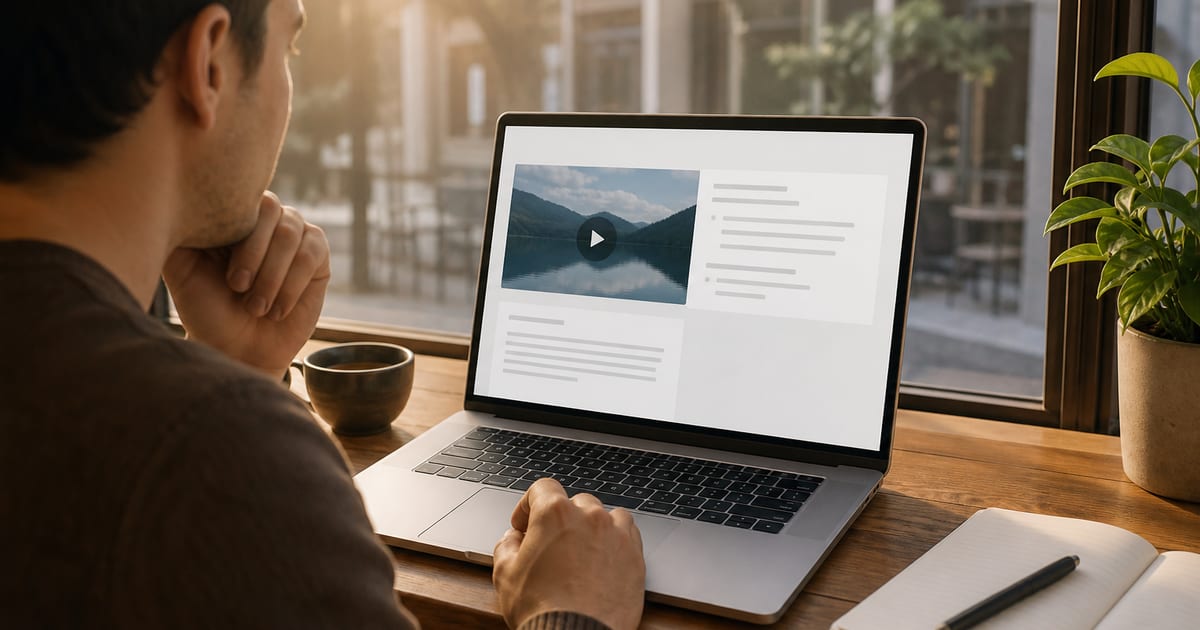
- Split screen — video left, notes right. Paste title + URL at the top.
- Watch at 1.5x or 2x — you still catch ideas; you reclaim 30–50% of runtime.
- Pause on signal, not on every sentence — capture the player time before you write (
08:12,19:40). - Write in your own words — summarizing is the encoding step; verbatim typing is photocopying.
- Mark actions — prefix todos with
>>so they survive a skim later.
The timestamp habit is the part most people skip and the part that makes notes reusable. “Pricing model explained at 24:15” is a cite; “they talked about pricing” is a fog.
Honest downside: careful notes on a 60-minute podcast can still cost ~40 minutes even at 2x. Fine for one high-stakes video. It does not scale to a channel-a-day habit.
YouTube’s official transcript panel (Show transcript / View transcripts) can sit beside your doc if you prefer skimming text over scrubbing audio — see how to get a YouTube transcript.
How Does AI Note-Taking From the Transcript Work?
AI flips the labor: generate a structured draft first, then refine. With Summario the loop looks like:
- Paste the URL or open the video with the Chrome extension.
- Pull a transcript summary with timestamped key points.
- Ask follow-ups in grounded AI chat (“What did they say about pricing?”) and click citations.
- Edit down — cut noise, keep signal, add your commentary.
- Export to Notion or Obsidian with timestamps intact.
Free plan: 3 quick + 1 full summary + 1 chat/day. Pro from about $5.75/mo annually (pricing).
Adjacent tools people mix into note workflows:
- Glasp — highlight-first web notes; strong if you already annotate while browsing.
- Eightify — fast bullets when you want skim notes, not a deep library.
- NotebookLM — multi-source notebooks when one video is only one source among PDFs (NotebookLM vs YouTube summarizer).
- ChatGPT — paste transcript chunks for custom note formats; weaker on clickable timestamps unless you engineer them (ChatGPT YouTube guide).
Honest Summario limits for note-takers
- Chrome-only extension path (web app softens this).
- Free-tier ceilings on heavy study days.
- Transcript-dependent — bad captions → bad notes.
- No pure-visual capture — unspoken slide text can vanish.
- AI drafts are not a substitute for your judgment on graded or published claims.
Manual vs AI: Which Note Method Should You Use?
| Method | Effort | Verifiability | Best when |
|---|---|---|---|
| Manual, no timestamps | Medium | Low | Casual journaling only |
| Manual with timestamps | High | High | One critical video |
| AI notes alone | Low | Medium–high if cited | Triage + first draft |
| AI draft + your edits | Medium | Highest | Default for most people |
The sweet spot for most readers is the last row: AI produces the timestamped scaffold; you rewrite the lines you care about. You keep speed and the retention benefit of putting ideas in your own words.
For long-form specifically, see how to summarize long YouTube videos. For free-tool ceilings, see free YouTube summarizer.
How Do You Export YouTube Notes to Notion or Obsidian?
Notes trapped in a sidebar are notes you will lose. A durable exported note keeps four pieces:
- Title + URL at the top
- Timestamped key points
- One-sentence takeaway in your words
- A small tag (
#marketing,#health,#coding)
Summario’s YouTube to Notion path is built so citations survive the trip. In Obsidian, a line that points to 31:20 remains a jump target back to the source. In Notion, video notes sit beside the rest of your research and stay searchable.
Highlight tools like Glasp shine if your habit is progressive annotation rather than one-shot summaries — pick the capture style you will actually repeat.
How Do You Build a Searchable Video Library?
One note helps today. A hundred notes you can query is a compounding advantage.
Practical rules:
- Tiny tag set beats an exploding folksonomy you never reuse.
- Keep the source link so every claim stays auditable.
- Scannable top line — future-you searches topics and skims takeaways, not essays.
- Same template every time — consistency is what turns a pile into a library.
Inside Summario, notes stay searchable in-app; exports extend that library into tools you already live in. Students can layer this with the students use case and YouTube summaries for studying.
Why Should Note-Taking Include Active Recall?
Notes you never revisit are organized forgetting. Testing yourself beats re-reading. Classic experiments by Roediger & Karpicke (2006) showed stronger delayed retention after retrieval practice than after restudying, and Dunlosky et al. (2013) rated practice testing among the highest-utility learning techniques.
Build a cheap recall step:
- After notes, close the video and write one paragraph from memory. Gaps = revision targets.
- Turn points into questions (“What’s the pricing model?”) instead of statements.
- Use grounded chat to quiz yourself, then click the timestamp to check.
That loop — draft, retrieve, verify — is how YouTube time becomes durable knowledge instead of a watched badge.
YouTube’s own conversational helpers (Ask YouTube on the watch page) can answer in-product questions, but they are not a personal knowledge base with Notion/Obsidian export. Dedicated note workflows still win when the artifact must live in your system.
What Does a Good YouTube Note Look Like in Practice?
Here is a minimal template you can paste at the top of every note:
Title:
URL:
Tag:
One-line takeaway:

Key points
- [mm:ss] claim or idea in my words
- [mm:ss] claim or idea in my words

Open questions
- …

Actions
>> …
Fill it manually while watching, or generate the key-points block with AI and rewrite two or three lines in your voice. The rewrite step is not busywork — it is where memory forms. If a point is surprising enough to reuse in a paper or meeting, click the timestamp once before you file the note. Fluent AI paraphrases can still drift from the source; citation-focused research keeps finding incomplete support even in strong systems (Gao et al., arXiv:2305.14627).
How Should Different People Adapt the Workflow?
Students: Triage with Watch/Skip, deep-note only exam-relevant lectures, quiz with chat, export weekly into one subject vault. See YouTube summaries for studying and /use-cases/students.
Knowledge workers: Prefer short AI drafts plus action lines (>>). Digests help when many channels feed your beat (knowledge workers).
Creators: Note competitor structure — hooks, chapter pacing, CTA placement — with timestamps you can rewatch. Competitor research guide.
Podcast listeners: Same template on YouTube-published episodes; Skip liberally. Summarize podcast episodes.
Across all of these, free Summario allowances go further when you summarize candidates, not every autoplay. For ceilings and comparisons, read free YouTube summarizer and best YouTube summarizer 2026.
What Mistakes Make YouTube Notes Useless?
A short anti-patterns list:
- Transcribing everything — feels productive, encodes little.
- No timestamps — you cannot verify or rewatch the claim.
- No URL — the note becomes orphaned folklore.
- Trusting AI paraphrase blindly — especially for numbers, quotes, and medical/legal claims.
- Leaving notes in the summarizer forever — export or they evaporate from your habits.
- Twenty unique tags — you will never filter by them; use five.
Fix those six and almost any tool stack works. Fancy features cannot rescue a note that was never designed to be found again.
Also remember browser limits: Summario’s smoothest capture is still the Chrome extension; the web app covers paste-a-link moments on other browsers. If captions are off, no note tool invents a reliable transcript — start from how to get a YouTube transcript or watch the segment yourself.
Highlight-centric users can combine stacks: skim with Summario or Eightify, keep durable annotations in Glasp, and park long-term synthesis in Notion, Obsidian, or NotebookLM. The tools overlap on purpose; your job is to pick a primary capture path so notes do not fragment across five half-used apps. Consistency beats feature checklists every time.
Soft CTA
If you want timestamped AI drafts you can edit and export — with a free daily allowance to try on real videos — start with Summario. Prefer highlight-as-you-go or bullets-only tools? Those adjacent products may fit — Summario is built for timestamped drafts you will edit. The best note system is the one you will open again next month.
Frequently Asked Questions
How do you take notes from a YouTube video?
Keep the video beside a notes doc, pause on key ideas, and write each point in your own words with the player timestamp (for example 12:34). Paste the URL at the top. For speed, run an AI tool on the transcript to draft timestamped highlights, then edit those into your voice.
How do you take notes from YouTube without pausing constantly?
Watch once at 1.5x for shape, then generate a timestamped AI summary and review that instead of stopping every thirty seconds. Use grounded chat to jump to moments you still need to hear.
Can you take notes automatically from YouTube?
Yes. Tools that read captions can produce one-click highlights with timestamps. You should still rewrite key lines in your own words for retention — automation drafts; your brain encodes.
What is the best note-taking app for YouTube?
The best app is the one that lands notes where you already search. If you live in Notion or Obsidian, pick a YouTube tool that exports with timestamps intact. Summario exports to both and keeps an in-app searchable copy.
How do I keep YouTube notes organized long term?
Use a fixed template: title + URL, timestamped points, one-line takeaway, and a small tag set. Export into Notion or Obsidian so notes compound instead of rotting in browser sidebars.
What are Summario’s limits for note-taking?
Summario is Chrome-oriented for the extension, free-capped at 3 quick + 1 full + 1 chat per day, and transcript-dependent. It will not capture silent on-screen text the narrator never speaks. Treat AI notes as a draft you verify.