The best ChatGPT prompts to summarize YouTube videos start with a transcript — not a bare URL — and demand a clear structure plus “use only this text.” ChatGPT is a strong summarizer when you feed it captions and constrain invention. It is a weak YouTube watcher when you paste a link and hope.
Disclosure: this guide is published by Summario. We mention ChatGPT and other tools by name for context; prompts below are free to copy.
Below: the required workflow, a default “best” prompt, seven copy-paste templates in fenced blocks, honest limits, and when a purpose-built tool skips the paste tax.
Why Must You Paste a Transcript First?
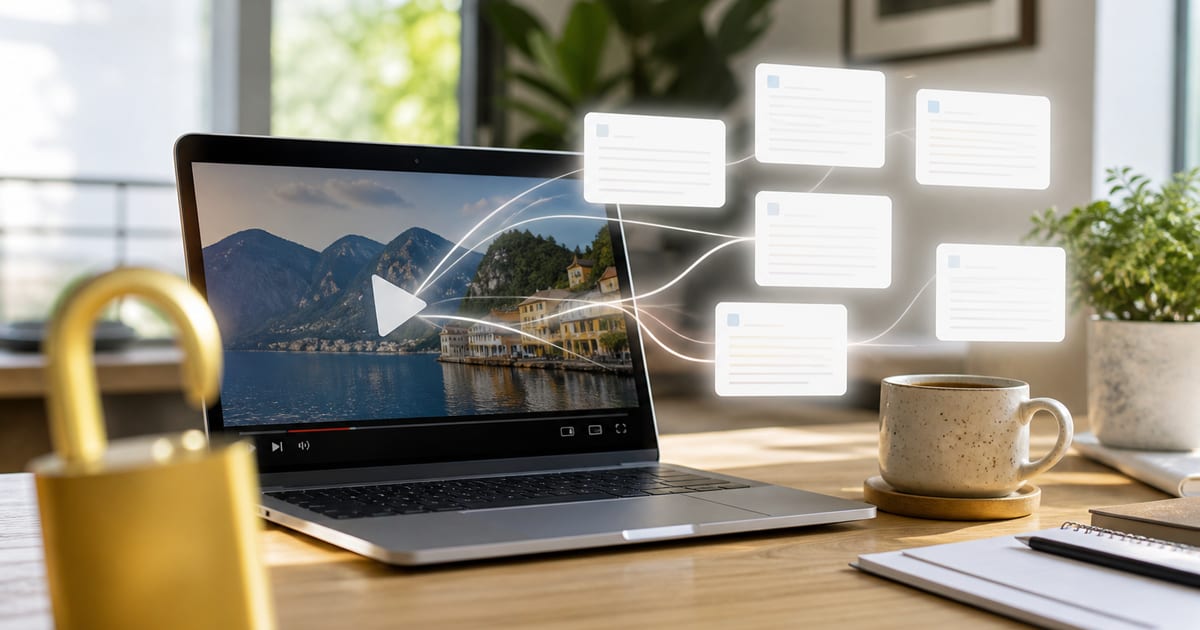
Most listicles skip this: ChatGPT does not natively watch YouTube. When you paste a URL and ask for a summary, the model is often guessing from training data or failing quietly.
Reliable workflow:
- Open the YouTube video and click Show transcript (or the “…” transcript option).
- Copy the full transcript text (timestamps included help for outlines).
- Paste it into ChatGPT along with one of the prompts below.
The prompt shapes the output; the transcript grounds it. Without the transcript, every prompt here degrades into hallucination risk. For caption extraction details, see how to get a YouTube transcript and Can ChatGPT summarize YouTube videos?. YouTube’s own help center covers finding captions on the watch page via YouTube Help.
What Is the Best Default Prompt?
The best default prompt (1) says you are pasting a transcript, (2) asks for TL;DR + 5–7 key takeaways, and (3) forbids outside knowledge:
You are summarizing a YouTube video from its transcript, which
I will paste below. Do not use outside knowledge. Produce:

1. A 2-sentence TL;DR.
2. 5-7 key takeaways as bullet points.
3. One sentence on who this video is most useful for.

If the transcript is unclear or cuts off, say so instead of guessing.

Transcript:
[paste transcript here]
The “do not use outside knowledge” and “say so instead of guessing” lines matter more than the formatting — they keep ChatGPT honest about what is actually in the video.
What Are the Best Copy-Paste Prompts?
1. The TL;DR prompt
For when you just need to know if a video is worth your time.
Summarize the following YouTube transcript in exactly 3 sentences.
Focus on the single most important point, not a list of topics.
Do not add anything not stated in the transcript.

Transcript:
[paste transcript here]
2. The key takeaways prompt
The workhorse. Structured, scannable, good for most videos.
From the transcript below, extract the 5-8 most important takeaways.
Write each as a complete, standalone sentence a reader could
understand without watching the video. Order them by importance,
not by when they appear. Ignore intros, sponsorships, and sign-offs.

Transcript:
[paste transcript here]
3. The timestamped outline prompt
If you copied the transcript with its timestamps, ChatGPT can build a rough chapter map.
The transcript below includes timestamps. Build an outline of the
video's sections. For each section, give the approximate start
timestamp, a short heading, and one line on what's covered.
Only use timestamps that appear in the transcript.

Transcript:
[paste transcript here]
Caveat: these timestamps are plain text, not clickable. You scrub to them manually in YouTube.
4. The ELI5 prompt
For dense, technical, or jargon-heavy videos.
Explain the following YouTube transcript as if I'm smart but new
to this topic. Use plain language, define any jargon the moment
it appears, and use a concrete analogy for the hardest concept.
Keep it under 250 words. Use only the transcript.

Transcript:
[paste transcript here]
5. The action items prompt
Perfect for tutorials, how-to content, and strategy videos.
Read the transcript below and extract every actionable step,
recommendation, or instruction the speaker gives. Format as a
numbered checklist I could follow without rewatching. Leave out
motivation and commentary — only concrete actions.

Transcript:
[paste transcript here]
6. The fact vs. opinion prompt
For debates, commentary, and persuasive content where you want claims separated from spin.
Analyze the transcript below. Produce two lists:
1. FACTUAL CLAIMS — statements presented as fact.
2. OPINIONS — the speaker's interpretations, predictions, or
   value judgments.
If a claim is stated as fact but sounds unverified, put it under
facts and flag it with (unverified). Only use the transcript.

Transcript:
[paste transcript here]
7. The study notes prompt
Built for students turning a lecture or explainer into revision material.
Turn the transcript below into study notes. Include:
- A short summary paragraph.
- Key terms with definitions.
- 3-5 review questions with answers.
Keep everything grounded in the transcript. If a concept is
mentioned but not explained, list it under "Look up later."

Transcript:
[paste transcript here]
For lecture-heavy workflows, also see YouTube summaries for studying and how to summarize a webinar or lecture.
How Do You Pick a Prompt for the Job?
| Your goal | Best prompt | Weakness to watch |
|---|---|---|
| Decide whether to watch | TL;DR (#1) | Too short for nuance |
| Shareable brief | Key takeaways (#2) | May drop secondary caveats |
| Navigate a long video | Timestamped outline (#3) | Timestamps are not clickable |
| Learn a hard topic | ELI5 (#4) | Analogies can oversimplify |
| Follow a tutorial | Action items (#5) | Misses visual-only steps |
| Critique persuasion | Fact vs opinion (#6) | Classification is judgmental |
| Exam revision | Study notes (#7) | Needs clean lecture captions |
Combine prompts when needed: TL;DR first, then takeaways or action items only if the video earns more attention. That mirrors how dedicated tools separate quick vs full depth.
What Are the Honest Limits of ChatGPT YouTube Prompts?
These prompts are useful. Know where the approach breaks:
- Context length. Two-hour podcasts produce transcripts too big for a single paste. Chunk → summarize → merge. It works; quality drifts. See how to summarize long YouTube videos.
- No native video access. Anything communicated only visually — charts, silent demos, on-screen text never spoken — is invisible.
- Hallucination risk. Messy or cut-off transcripts invite confident invention. Grounding instructions reduce this; they do not eliminate it.
- No clickable timestamps. Outlines give text you scrub to manually.
- Friction tax. Finding, copying, pasting, and re-prompting every video adds up if you do this daily.
None of this makes ChatGPT a bad choice for a 15-minute talk. It makes it a clear trade: free flexibility versus setup cost.
When Should a Purpose-Built Tool Skip the Paste Step?
The friction with ChatGPT is rarely the prompting — it is everything around it. For a one-off, paste is fine. If you summarize regularly, dedicated tools remove retrieval friction and (in better products) add verification paths.
Comparisons worth knowing:
- Eightify — fast key-insight bullets on the watch page; weak as a custom prompt studio.
- Glasp — highlight-first notes; better when your artifact is a quote library.
- NoteGPT — study formats (flashcards, mind maps) beyond a single ChatGPT paste.
- Gemini Notebook / NotebookLM — multi-source research notebooks when one video is not enough.
- Summario — Watch/Skip verdicts, grounded chat with cited timestamps, email/WhatsApp digests; free 3 quick + 1 full + 1 chat/day; Pro ~$5.75/mo annual.
Honest Summario limits
Chrome-only extension today (web app helps), real free-tier caps, transcript dependence, and no pure-visual understanding. We are biased — verify on your videos. Product comparison: Summario vs ChatGPT. Broader landscape: best YouTube summarizer 2026.
Soft CTA
If you already live in ChatGPT, copy the default prompt and the two templates you will actually reuse (usually TL;DR + takeaways or action items). If the paste loop is eating your week, try a one-click path on Summario’s Chrome extension or web app, keep ChatGPT for custom writing, and use NotebookLM when a video becomes one source among many.
FAQ
What is the best ChatGPT prompt to summarize a YouTube video?
The best prompt tells ChatGPT you are pasting a transcript, asks for a specific structure (TL;DR plus 5–7 takeaways), and instructs it to use only that transcript. Always paste captions — a bare URL is unreliable.
Can ChatGPT summarize a YouTube video from just the URL?
Not reliably. ChatGPT has no native ability to watch YouTube, so a bare URL often produces a guess from training data. Paste the transcript alongside your prompt for grounded results.
How do I summarize a video that is too long to paste?
Split the transcript into chunks that fit the context window, summarize each chunk, then ask ChatGPT to merge those summaries into one brief. Quality can drift across chunks; dedicated tools are less painful for routine long-form work.
Do these ChatGPT prompts work with Claude or Gemini?
Yes. The prompts are model-agnostic. They rely on structure and grounding instructions, not ChatGPT-only features. The same transcript-paste workflow applies.
Should I keep timestamps in the transcript?
Keep them if you want an outline or rough chapter map. Strip them if you only want narrative bullets. Even with timestamps, ChatGPT usually returns plain text — not clickable jump links.
When should I stop using ChatGPT prompts and use a YouTube summarizer?
When you summarize many videos weekly, need clickable citations, want Watch/Skip triage, or need digests to email/WhatsApp. Prompts win for occasional custom briefs if you already pay for ChatGPT.
How do I reduce hallucinations in YouTube summaries?
Instruct the model to use only the transcript, to say when the text is unclear, and to avoid outside knowledge. Then verify important claims in the video. Timestamp-citing tools make verification faster.